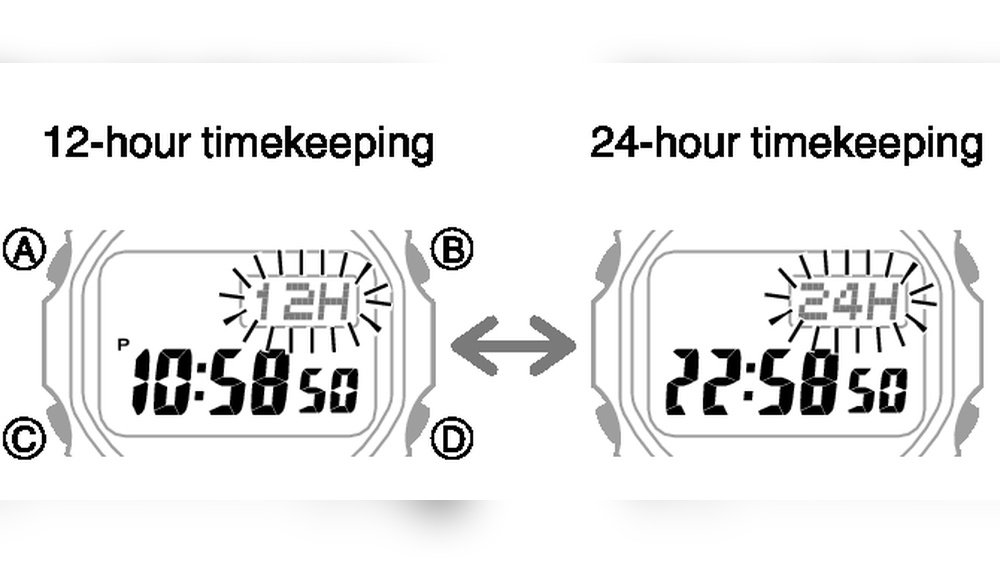
Casio watches are popular for their durability and clear displays. Many people use them every day to keep track of time. Some Casio watches show time in 24-hour format. Others show time in 12-hour format. You might want to switch between these two formats. This guide will help you change your Casio watch from 24-hour time to 12-hour time easily.
Why Change the Time Format?
Some people like 24-hour time because it is clear and avoids confusion. Others prefer 12-hour time because it is common in the United States and easier to read for many.
If your watch is showing 24-hour time and you want it in 12-hour time, this guide is for you. The steps are simple and do not need any special tools.
Credit: support.casio.com
What You Need to Know Before Changing Time Format
- Make sure your watch is working and shows the time.
- Know the buttons on your watch. Usually, Casio watches have four buttons: A, B, C, and D.
- Button A is often the top left button (Adjust).
- Button B is the top right button (Light or Start).
- Button C is the bottom left button (Mode).
- Button D is the bottom right button (Reset or Split).
These button names can vary by model but usually match this order.
Step-by-Step Guide to Change Time Format
Follow these easy steps to change your Casio watch from 24-hour to 12-hour format.
Step 1: Enter Timekeeping Mode
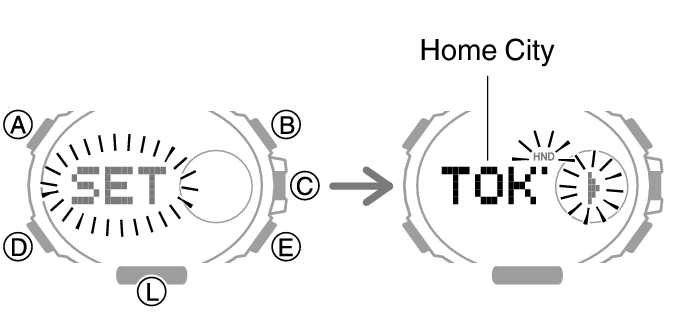
First, make sure your watch is in the timekeeping mode. This is the normal screen that shows the current time. If you see something else like the stopwatch or alarm, press the Mode (C) button several times until you get to the normal time screen.
Step 2: Start Setting Mode
Next, press and hold the Adjust (A) button. Hold it for about two seconds. You will see the seconds start to flash. This means you are in the setting mode.
Step 3: Find The Hour Format Setting
Press the Mode (C) button once or more until you see the hour or the 24H/12H option flashing. The watch cycles through seconds, hour, minutes, year, month, day, and then the 24H or 12H format.
Step 4: Change The Format
When you see the 24H or 12H flashing, press the Reset (D) button to switch between 24-hour and 12-hour modes. If your watch shows “24H,” pressing the button will change it to “12H,” and vice versa.
Step 5: Exit Setting Mode
After selecting the right time format, press the Adjust (A) button again to save your changes and exit the setting mode. Your watch will now display time in the 12-hour format.
Summary Table: Buttons and Their Functions
| Button | Common Position | Function in This Guide |
|---|---|---|
| Adjust (A) | Top Left | Enter and exit setting mode |
| Mode (C) | Bottom Left | Move through settings (seconds, hour, format) |
| Reset (D) | Bottom Right | Change time format (12H or 24H) |
| Light (B) | Top Right | Usually lights the display (not used here) |
Tips for Different Casio Watch Models
Casio has many watch models. The steps above work for most digital Casio watches, like the Casio Illuminator series and G-Shock watches. Some models may have small differences. Here are some tips:
- Casio Illuminator: Use the bottom right button to toggle 12H/24H in timekeeping mode.
- G-Shock: Press and hold Adjust button to enter settings, then use Mode to find 12H/24H, and Reset to change it.
- Older models: If the steps do not work, try pressing different buttons while in timekeeping mode to find the 12H/24H option.
- Manuals: You can find your watch manual on the Casio support website for model-specific instructions.
What to Do If the Watch Does Not Change
Sometimes the watch might not switch the time format. This can happen if the watch is locked or has a different setting mode. Try these steps:
- Make sure you press and hold the Adjust button long enough.
- Check if you are in the timekeeping mode.
- Try pressing the Mode button multiple times to find the 12H/24H option.
- If nothing works, check the watch manual or look for your model’s instructions online.
- Reset your watch if necessary (only if you know how to do it safely).
How to Reset a Casio Watch (If Needed)
If your watch does not respond, you might need to reset it. Please be careful with this step.
- Remove the back cover of the watch carefully.
- Find the reset point inside the watch (usually a small metal contact).
- Use a small metal tool like a paperclip to connect the reset point to the battery terminal.
- Hold for a few seconds and release.
- Put the back cover on and try setting the time again.
Note: Resetting your watch can erase all settings. Do it only if you understand the risks.

Credit: www.youtube.com
Final Thoughts
Changing your Casio watch from 24-hour time to 12-hour time is simple. Just follow the steps carefully. Make sure you are in timekeeping mode and use the buttons correctly. Most Casio digital watches share this method. If your watch is different, check the manual or online help.
Now you can wear your Casio watch with the time format you like best. Whether you prefer 24-hour or 12-hour, your watch can show it clearly. Enjoy your timekeeping!
Frequently Asked Questions
How Do I Change My Casio From 24-hour To 12-hour?
To change your Casio watch from 24-hour to 12-hour format, enter Timekeeping Mode. Then press the bottom right button to toggle between 24-hour and 12-hour display. Press Adjust or Mode to save and exit the setting. Your watch now shows time in 12-hour format.
How To Get A Casio Watch Out Of 24-hour Mode?
To exit 24-hour mode on a Casio watch, enter timekeeping mode. Press the bottom right button to toggle between 12-hour and 24-hour formats. Confirm the change by pressing the adjust button if available. The watch will now display time in 12-hour format.
How Do I Change The Time On My Watch From 24 To 12 Hours?
To change your Casio watch from 24-hour to 12-hour format, enter Timekeeping Mode. Press the bottom right button to toggle between 12H and 24H formats. Exit settings by pressing the Adjust button. Your watch now displays time in 12-hour format.
How Do I Turn Off 24-hour Time?
To turn off 24-hour time on a Casio watch, enter Timekeeping Mode. Press the bottom right button to toggle between 12-hour and 24-hour formats. Exit settings by pressing the Adjust button or waiting for the watch to auto-exit.