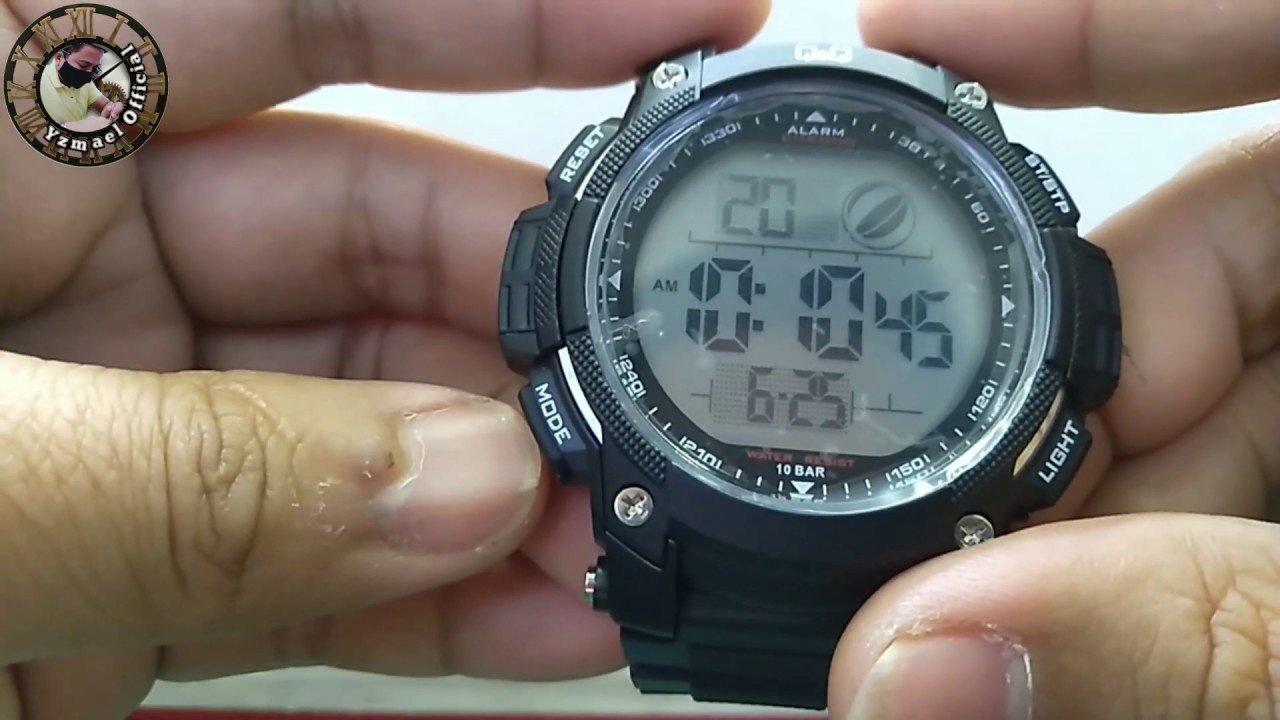
Setting your Q&Q digital watch involves navigating a standard interface common to most quartz-based timepieces, typically relying on a combination of mode and adjust buttons to cycle through settings. Whether you’re adjusting the time for a new time zone or correcting a minor drift in accuracy, the process usually requires entering the programming mode, selecting the digit you wish to change, and incrementing that value until it reflects the current time. While Q&Q watches vary in design, most follow the same three-button or four-button configuration found on many Citizen Watch Co. Digital timepieces to ensure global consistency in user operation.
Key Takeaways
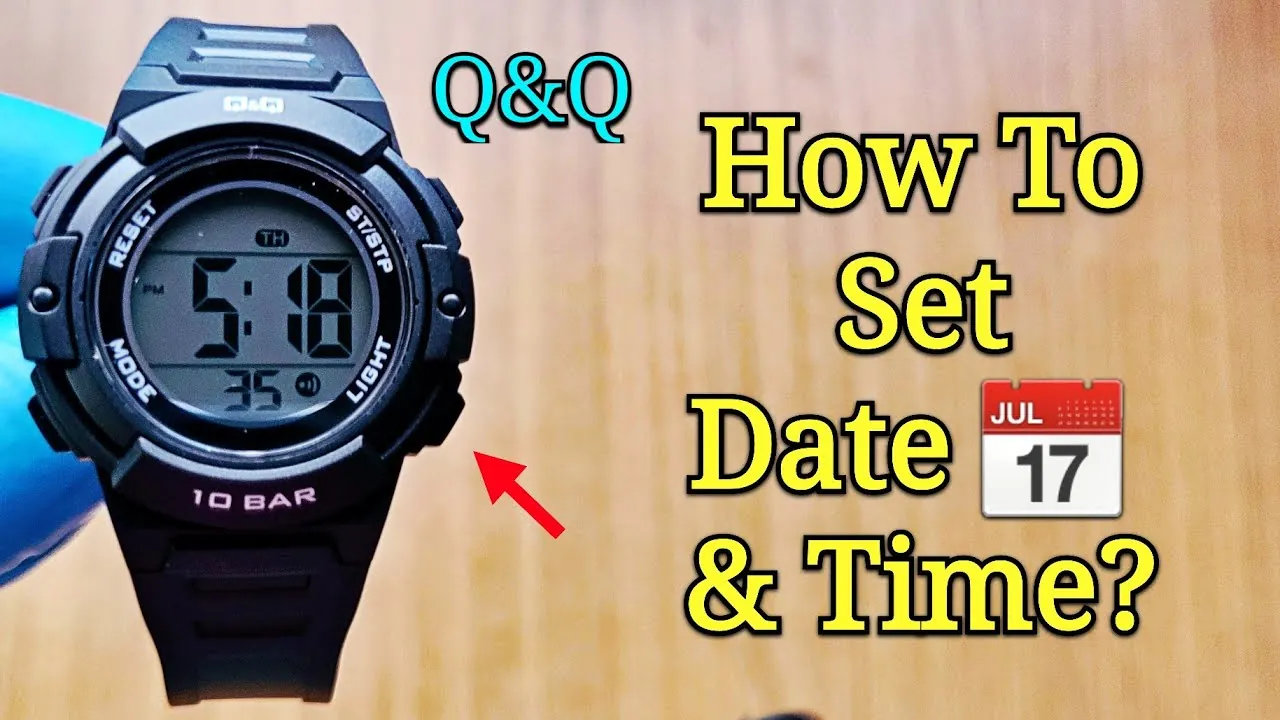
- Identify your buttons: Most models feature a Mode button and an Adjust/Start button.
- Pulsing digits indicate you’re in Edit mode, allowing for immediate modification.
- Always confirm your settings by pressing the Mode button once more to exit.
- Avoid pressing buttons underwater to maintain the internal seal integrity.
- Resetting your watch can often fix display errors caused by static electricity.
Understanding Your Watch Interface
Most Q&Q digital models utilize three primary buttons: Mode, Start/Stop, and Reset. The Mode button is your primary navigation tool, moving the display between the timekeeping screen, alarm, stopwatch, and time-setting menus. The Start/Stop button is typically used to increment numbers once you have entered the setup phase. The Reset button serves a dual purpose, acting as a lap timer in stopwatch mode or as a selector to jump between hours, minutes, and seconds during the setup process.
How to Set Q&Q Digital Watch
To begin the process, press the Mode button until the seconds on your display begin to flash. Once the digits are blinking, you’re in edit mode. Use the Reset button to cycle through the different fields—seconds, minutes, hours, date, and day of the week—in sequence.
When the field you wish to change is blinking, press the Start/Stop button to increase the value. Continue this process until all fields are correct, then press the Mode button again to save your changes and return to the main timekeeping screen.
| Button Function | Primary Action | Secondary Action |
|---|---|---|
| Mode | Switch Modes | Save/Exit Settings |
| Start/Stop | Adjust Value | Start/Stop Stopwatch |
| Reset | Select Field | Lap/Reset Stopwatch |
Managing Alarm and Hourly Chime

Your watch likely features an integrated alarm function. To set it, press the Mode button until you see the alarm indicator, which is often represented by a small bell icon. Once in the alarm menu, press the Reset button to cycle between the hour and minute fields.
Use the Start/Stop button to adjust the alarm time. Pro Tip: Ensure you’re aware of the AM/PM indicator on your screen, as setting the alarm for the wrong 12-hour cycle is a common mistake that causes the alarm to trigger at the incorrect time of day.
Using the Stopwatch Feature
To track elapsed time, navigate to the stopwatch mode using the Mode button. Press the Start/Stop button to begin timing, and press it again to pause. If you need to record a lap time, press the Reset button while the stopwatch is running.
To clear the stopwatch and return the display to zero, stop the timer first and then press the Reset button. Many Q&Q models allow for split time tracking, which is useful for athletic activities or timing short-duration tasks.
Troubleshooting Common Display Errors
If your watch display is blank or the digits are faint, the battery may be reaching the end of its life. If the watch shows erratic numbers, it may have experienced a static discharge. In this case, you may need to perform a hard reset by shorting the battery to the AC terminal inside the case, though this should be handled by a professional if you’re uncomfortable opening the watch back.
Maintaining Water Resistance

Q&Q digital watches are often rated for varying levels of water resistance, ranging from basic splash resistance to full swimming capability. Always verify the rating on the case back. Warning: Never operate any buttons while the watch is submerged or wet, as this can break the seal and allow moisture into the internal movement, which is the leading cause of permanent failure in digital timepieces.
| Water Rating | Capability | Best Usage |
|---|---|---|
| 3 Bar | Splash Resistant | Hand washing |
| 5 Bar | Shower Proof | Light swimming |
| 10 Bar | Water Sports | Snorkeling/Surfing |
Related guides
- How To On Timex Watch: Easy Steps to Set Time Quickly
- How to Set Time on Casio Watch: Easy Step-by-Step Guide
Frequently Asked Questions
Why is my watch alarm not sounding?
Check that the alarm is actually toggled on. In the alarm mode, you may need to press the Start/Stop button to toggle the bell icon on or off. Also, ensure the time is set correctly, specifically checking if the AM/PM indicator is accurate, as an alarm set for 6:00 PM won’t sound at 6:00 AM.
How do I change the time format?
Most Q&Q digital watches allow you to toggle between 12-hour and 24-hour formats by pressing the Start/Stop button while in the time-setting mode. When you cycle through the hours, the display will eventually rotate through the 24-hour cycle or show an “H” or “24” indicator to signify the change.
What should I do if the battery dies?
When the display goes blank or becomes very dim, the internal battery requires replacement. It’s recommended to take the watch to a professional jeweler or watch repair shop to ensure the case-back gasket is seated correctly, which preserves the water-resistant seal of the watch after the case is closed.
Can I turn off the hourly chime?
Yes, you can usually disable the hourly chime by entering the alarm mode and toggling the chime settings. This is often done by pressing the Start/Stop or Reset button while in the alarm screen until the small chime icon disappears from the display. If you’re unsure, consult your specific model’s manual for the exact button sequence.
Is it normal for the light to be dim?
Digital watch lights are typically small LEDs that illuminate the screen for a few seconds. If the light appears unusually dim, it’s almost always a sign that the battery voltage is dropping. Replace the battery to restore full brightness to the display illumination.
Conclusion
Following these steps ensures your timepiece remains accurate and functional for daily wear. If you find the buttons remain unresponsive after multiple attempts, ensure the watch isn’t in a restricted mode, such as an active stopwatch session. For persistent issues, take your watch to a certified technician to inspect the internal contacts, as dirt or debris can sometimes obstruct the mechanical buttons from functioning as intended.